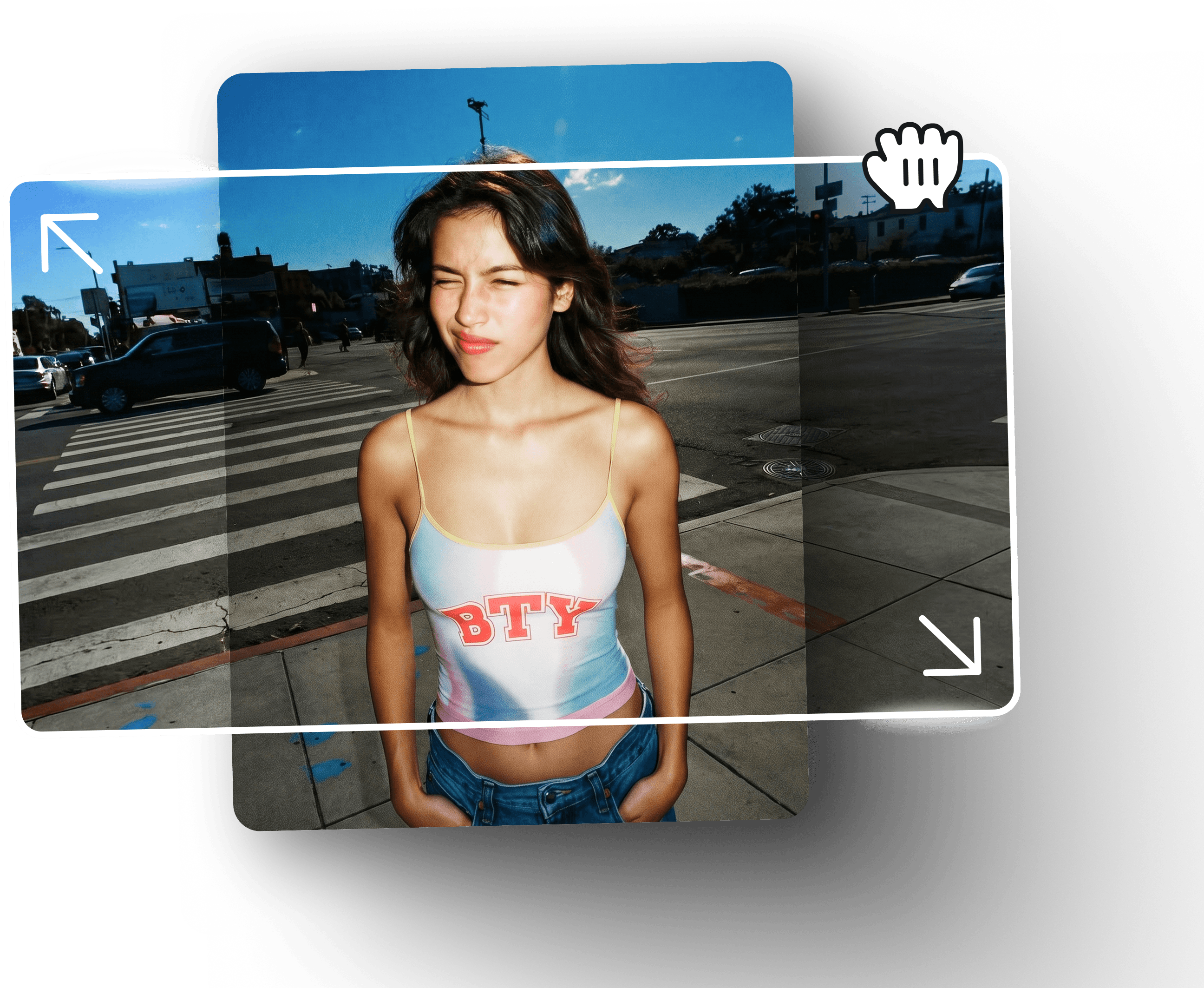
Ray 3.2 Video Reframer converts aspect ratios without rebuilding
Reframe source footage into a new layout while keeping the original clip and timing intact.
 Ray 3.2
Resize, reframe, and extend AI video to any aspect ratio with Ray 3.2 Video Reframer. Reshape a shot after the take with photorealistic, cinematic quality while the source footage stays intact. For the broader model overview, read the Ray 3.2 AI Video Generator.
Ray 3.2 Video Reframer
Source clip
Upload a video file up to 30 seconds.
Credit rates
| Resolution | Standard | HDR |
|---|---|---|
| 540p | 2 | 4 |
| 720p | 3 | 6 |
| 1080p | 7 | 14 |
Video Reframer uses standard dynamic rates. Credits scale by resolution and duration.
Ray 3.2 Video Reframer result
Source shot
Reframed shot
Why choose Ray 3.2 Video Reframer
Expand the frame without rebuilding the scene. Ray 3.2 Video Reframer keeps the original action visible while prompt-guided canvas fill completes the new ratio.
Reframe source footage into a new layout while keeping the original clip and timing intact.
The source video stays readable, so the new frame feels like an extension of the original scene.
Prompt-guided generation fills the new area with the right background, environment, or continuation.
Use the same workflow for vertical social edits, square placements, widescreen delivery, and cinematic crops.
540p, 720p, and 1080p keep the reframing workflow practical from rough cut to release.
Ray 3.2 Video Reframer request fields
Reframe videos with Ray 3.2 for social media, ads, product showcases, and cinematic edits. Turn one source clip into platform-ready versions with clear framing, quality control, and a simple creative workflow.
| Parameter | Required | Description |
|---|---|---|
| source_url | Yes | Uploaded source clip URL. The app fills this after upload. |
| prompt | Yes | Describe the new background, continuation, or canvas fill. |
| aspect_ratio | Yes | Target ratio for Ray 3.2 Video Reframer: 16:9, 9:16, 1:1, 4:3, 3:4, or 21:9. |
| resolution | No | Output resolution for Ray 3.2 Video Reframer: 540p, 720p, or 1080p. |
| duration | No | Clip length for Ray 3.2 Video Reframer: 5s or 10s. |
Ray 3.2 Video Reframer workflow
The flow mirrors the hero: upload the source, pick the frame, then let Ray 3.2 Video Reframer fill the exposed area.
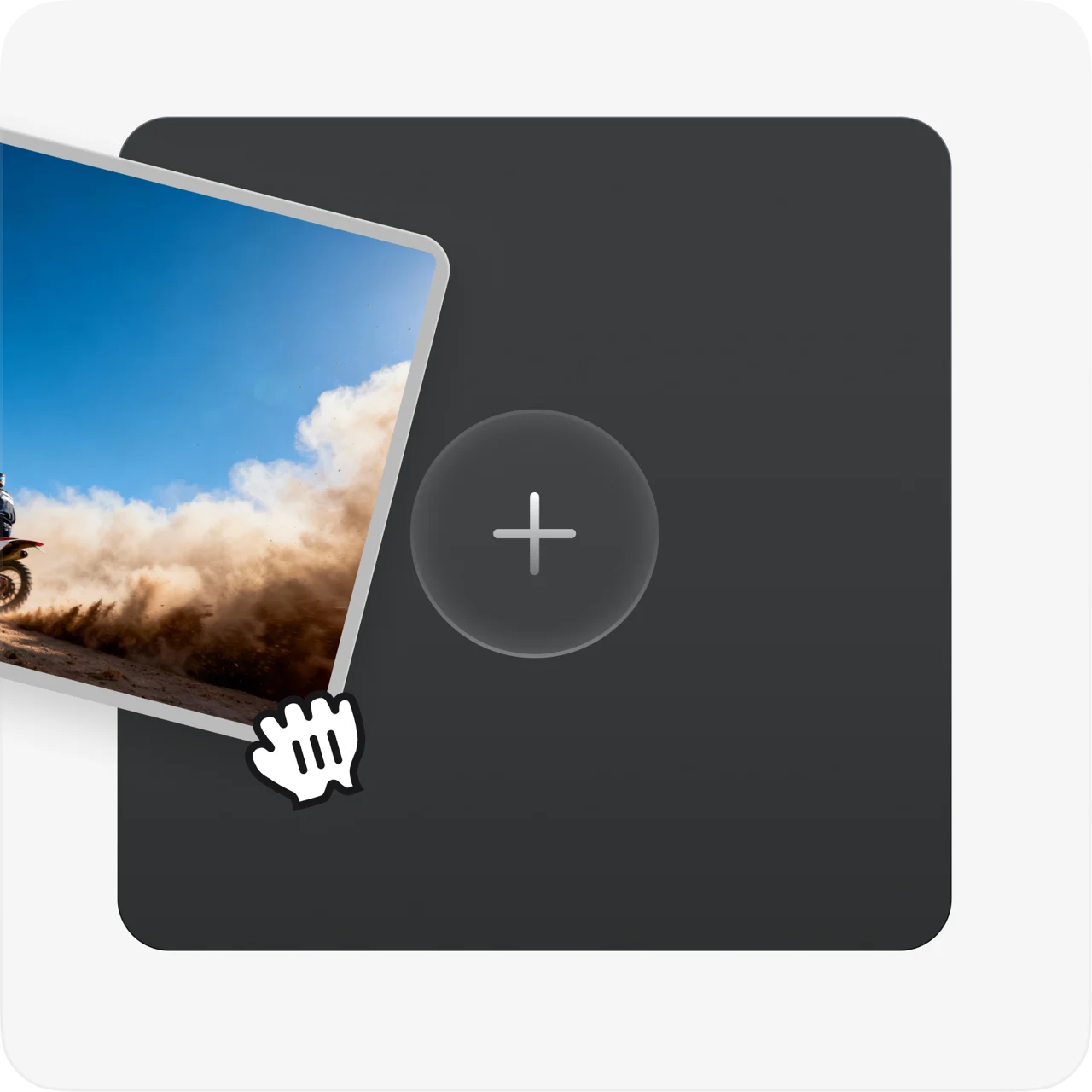
Drop in a source video and keep the original footage as the starting point for reframing.
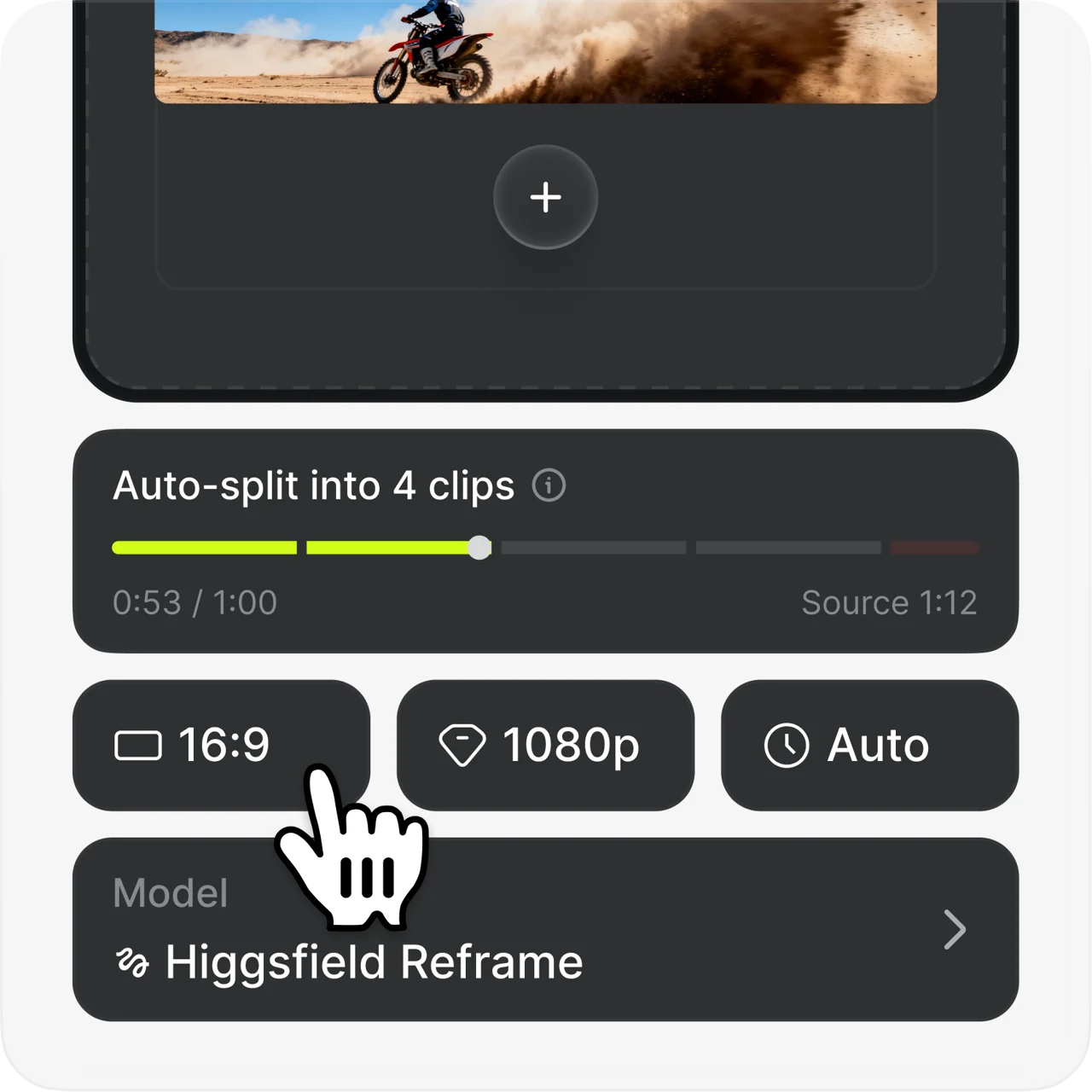
Choose the target ratio that matches the channel, whether that is vertical social, square, or widescreen.

Ray 3.2 Video Reframer fills the newly exposed area, then exports the reframed shot for delivery.
Showreel
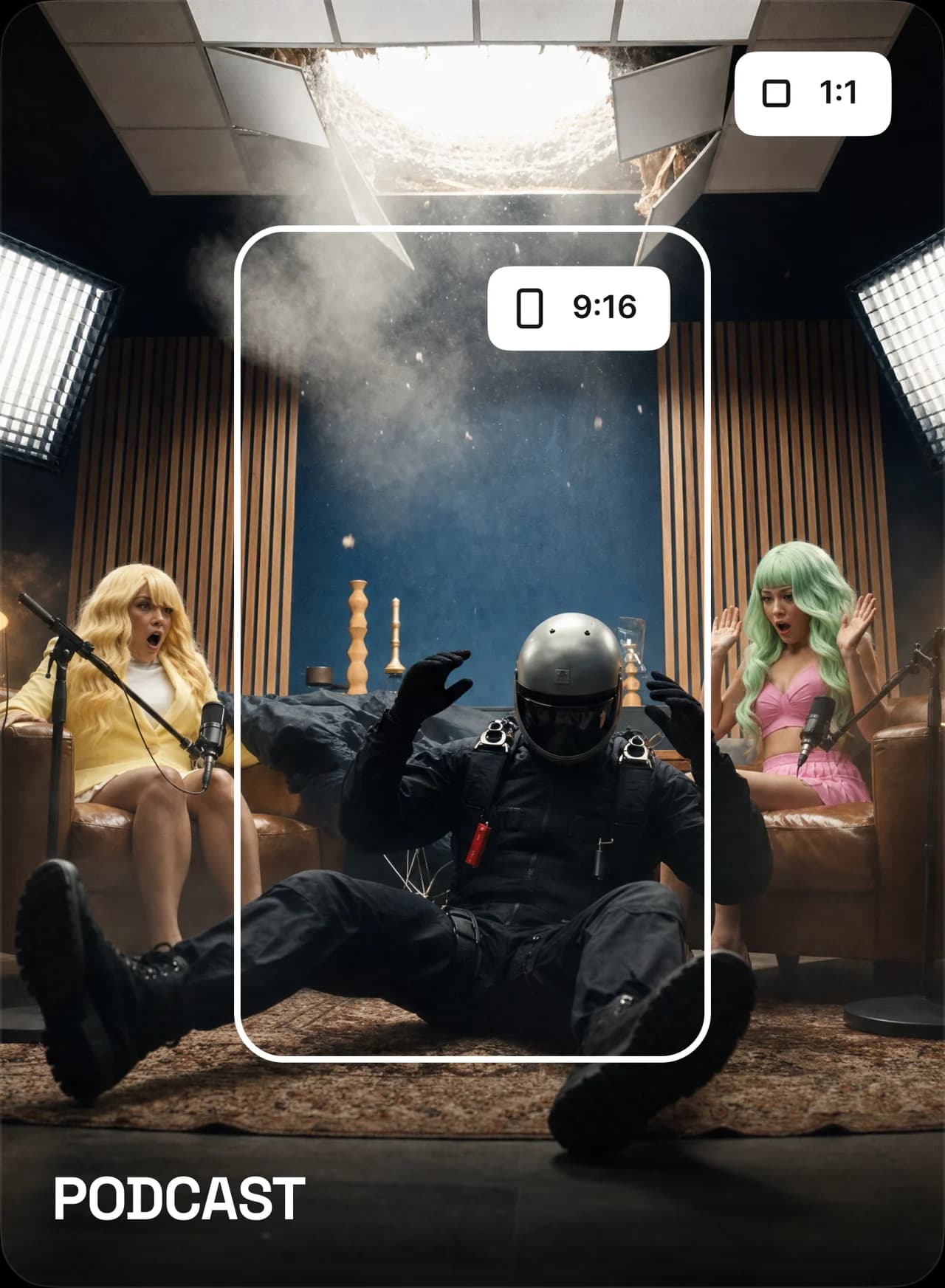
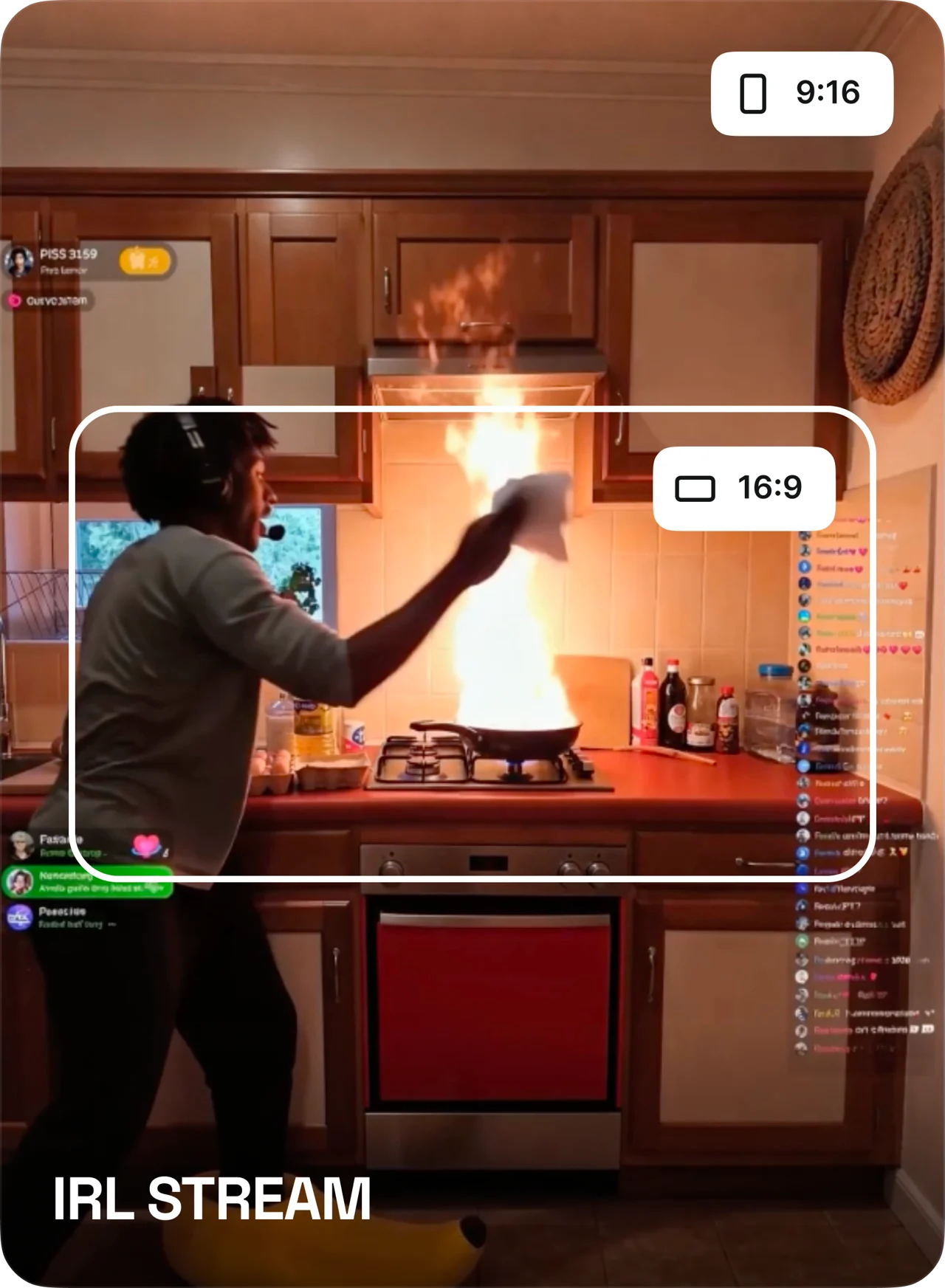
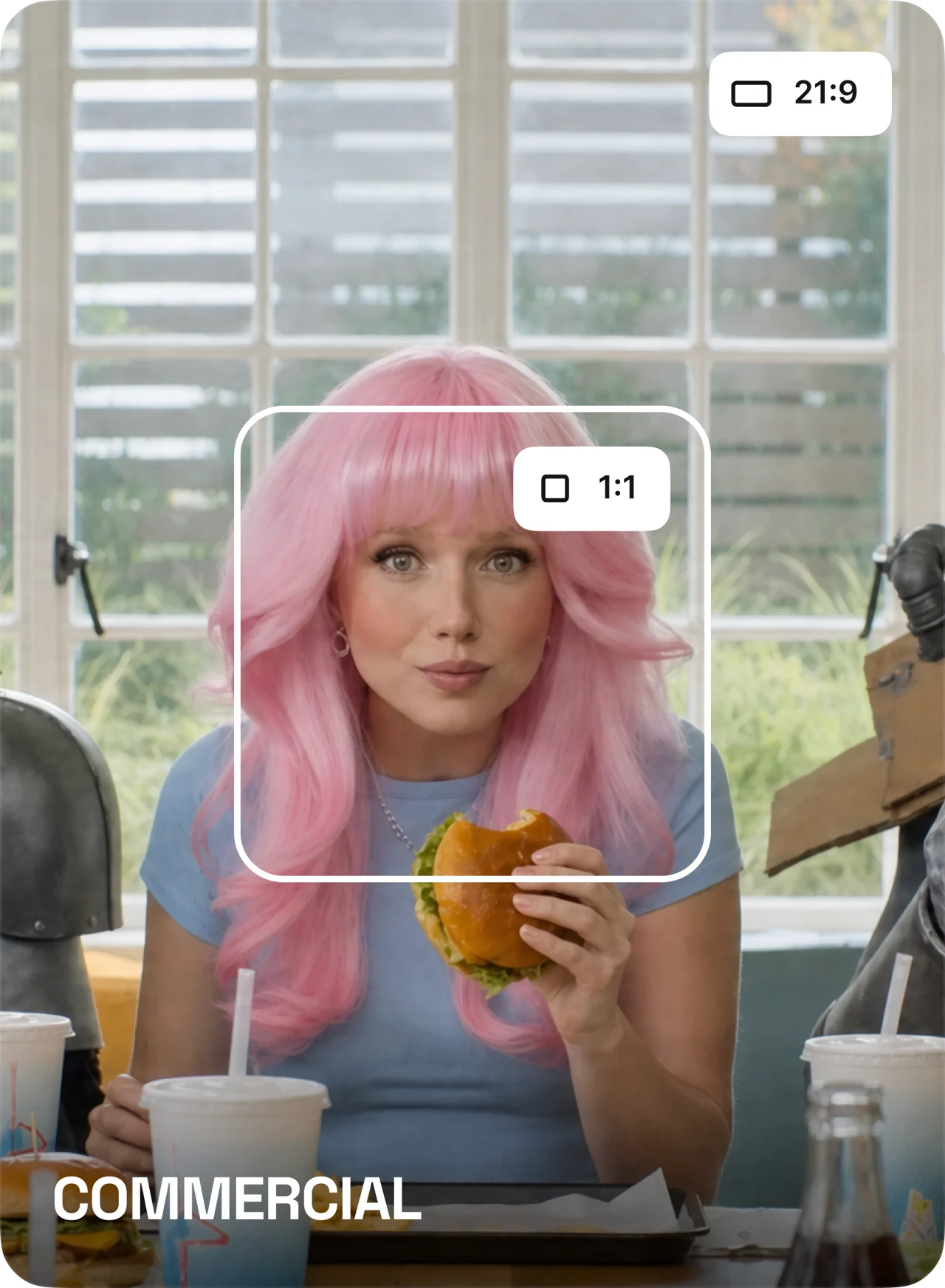
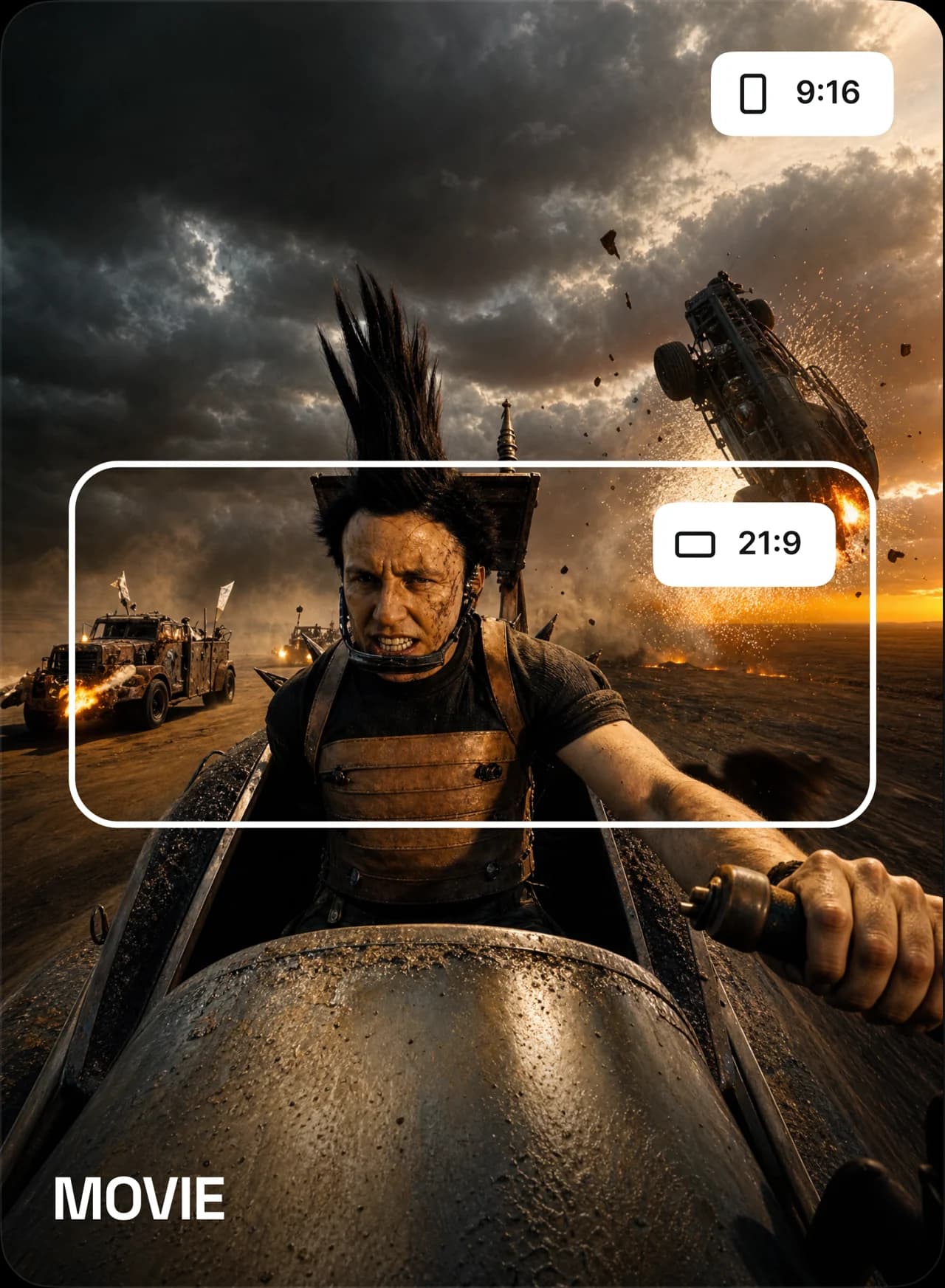
These local cases use real project assets to show how Ray 3.2 Video Reframer handles podcasts, live streams, ads, and cinematic scenes.
Pricing
Choose the pack that matches your reframing volume. Ray 3.2 Video Reframer works best when the credit pack lines up with your upload, test, and export cadence.
Limited-time creator pricing. Lock in credits before the offer resets.
Limited-time creator pricing. Lock in credits before the offer resets.
Limited-time creator pricing. Lock in credits before the offer resets.
Limited-time creator pricing. Lock in credits before the offer resets.
Choose one-time credits or subscription · Flexible billing options
Ray 3.2 Video Reframer FAQ
A quick reference for the most common Ray 3.2 Video Reframer questions.
Ray 3.2 Video Reframer changes the aspect ratio of an existing video while preserving the source footage and filling the newly exposed canvas from a prompt.
The source clip should be 30 seconds or less.
Ray 3.2 Video Reframer supports 16:9, 9:16, 1:1, 4:3, 3:4, and 21:9.
Use 9:16 when the reframed clip needs to live in short-form vertical placements like Reels, Shorts, or Stories.
Use 16:9 when the source or delivery channel is standard widescreen.
Use 21:9 when the reframed result should feel more cinematic or ultra-wide.
Describe the newly exposed canvas area, such as the background, environment, continuation, or visual mood you want to appear there.
Use 540p for speed, 720p for balanced iteration, and 1080p for the strongest delivery-quality result.
Yes, as long as the source clip is within the length limit and matches a supported video format like MP4.
Yes. The source footage stays intact and the model focuses on filling the additional canvas created by the new ratio.
Ray 3.2 Video Reframer
Jump to the Ray 3.2 Video Reframer form to upload a source clip, choose a new aspect ratio, and generate a prompt-guided reframed video.