Ray 3.2 Video Edit directs footage after the take
Edit and reshape AI video with frame-level keyframe control while keeping the source clip as the anchor.
 Ray 3.2
Edit and direct AI video with Ray 3.2 Video Edit. Reshape footage after the take with frame-level keyframe control, performance tracking, and photorealistic cinematic output. For the broader model overview, read the Ray 3.2 AI Video Generator.
Ray 3.2 Video Edit
Credit rates
| Resolution | Standard | HDR |
|---|---|---|
| 540p | 2 | 4 |
| 720p | 3 | 6 |
| 1080p | 7 | 14 |
HDR requires 720p or 1080p. Credits scale by resolution and HDR mode.
Result output
source video
cover
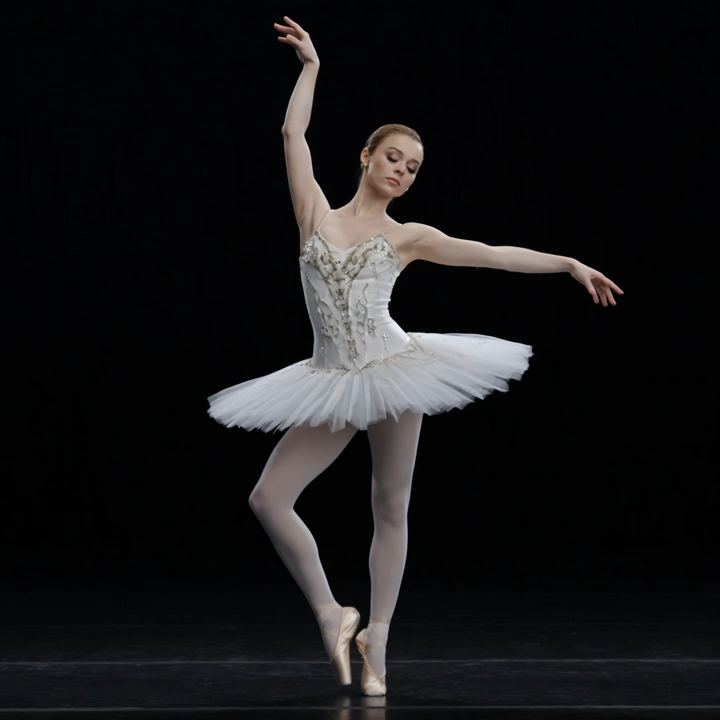
Your result will appear here
Upload a source video, place keyframes on the timeline, then describe the edit you want.
Why choose Ray 3.2 Video Edit
Inspired by professional AI video edit workflows, Ray 3.2 Video Edit combines source clip control, keyframe timing, and prompt-guided direction in one form.
Edit and reshape AI video with frame-level keyframe control while keeping the source clip as the anchor.
Place keyframes on the timeline, scrub the source video, and guide motion with clearer timing control.
Apply cinematic style shifts, environment changes, and controlled edits without rebuilding the shot from scratch.
Use 720p or 1080p HDR output when the edit needs stronger contrast and finish quality.
Upload, keyframe, prompt, and export in one workflow designed for fast creative iteration.
Ray 3.2 Video Edit request fields
The API path uses the source clip, prompt, optional keyframes, output quality, and auto_controls. Keep the request lean so Ray 3.2 Video Edit stays fast to understand and easy to send.
| Parameter | Required | Description |
|---|---|---|
| source_url | Yes | Uploaded source clip URL. Required for every Ray 3.2 Video Edit request. |
| prompt | Yes | Describe the edit direction, style shift, or performance change you want. |
| source_media_type | Yes | MIME type for the uploaded source clip, such as video/mp4. |
| resolution | No | Output resolution: 540p, 720p, or 1080p. Defaults to 720p. |
| duration | No | Clip length: 5s or 10s. Defaults to 5s and syncs with the timeline. |
| auto_controls | No | Automatic controls. Defaults to true in the Ray 3.2 Video Edit form. |
| keyframes | No | Optional keyframe image URLs paired with keyframe_indexes. |
| keyframe_indexes | No | Timeline positions for each keyframe image. |
Ray 3.2 Video Edit workflow
Upload the source clip, place keyframes on the timeline, then generate the directed edit.
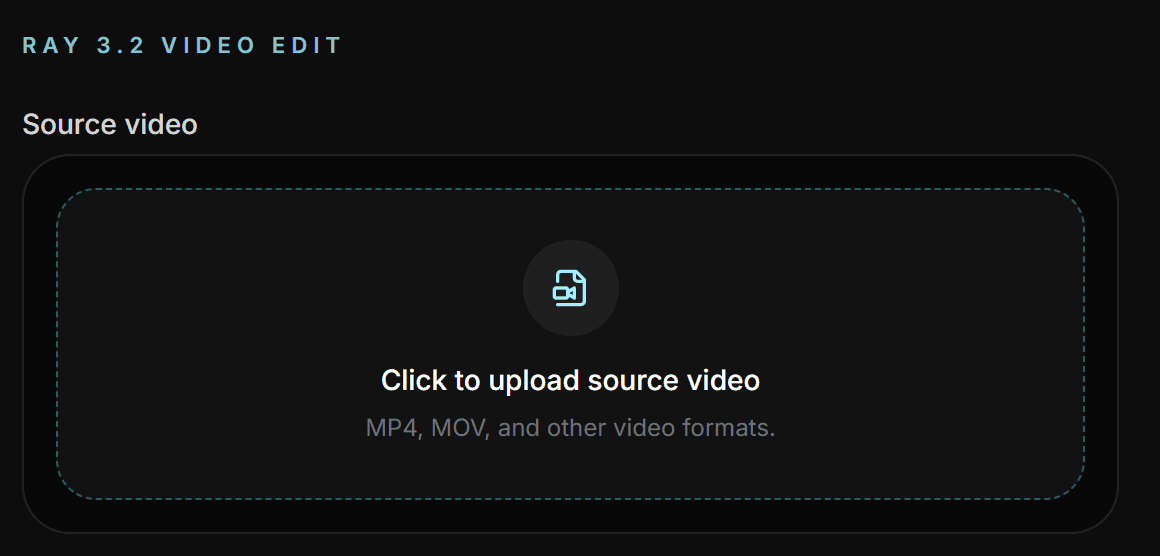
Add the source video above the timeline. This clip is required before generation.
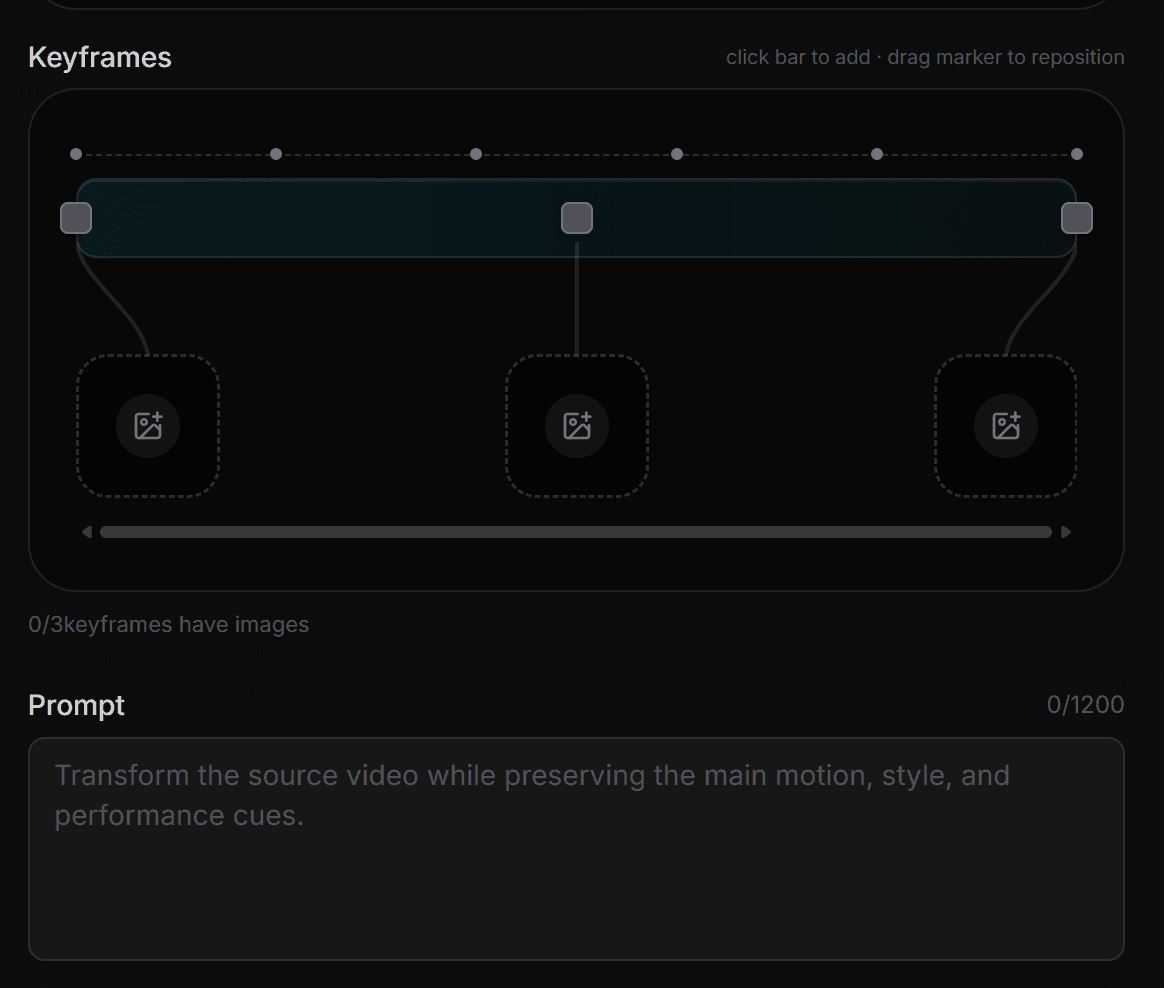
Click the track to add keyframes, drag markers to reposition them, and scrub the source video in sync.
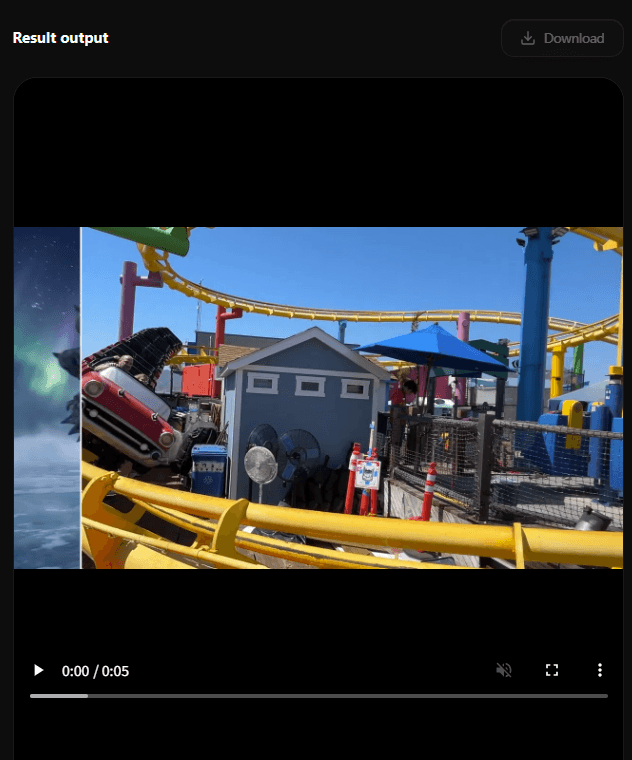
Describe the edit, choose resolution and duration, then generate the directed output.
Ray 3.2 Video Edit examples
Replace this section with your Ray 3.2 Video Edit example videos and before/after comparisons.
Hover to preview
Keep the original movement rhythm while changing the visible subject or style, so the new shot still follows the same physical timing.
Hover to preview
Change the character design while keeping the face timing, expression beats, and body performance readable in motion.
Hover to preview
Layer a more cinematic effect treatment onto the existing action while keeping the motion and scene continuity intact.
Hover to preview
Guide the subject's path and body timing, then carry that same motion intent into a snowy skiing output.
Pricing
Choose the pack that matches your edit volume. Ray 3.2 Video Edit works best when the credit pack lines up with your upload, test, and export cadence.
Limited-time creator pricing. Lock in credits before the offer resets.
Limited-time creator pricing. Lock in credits before the offer resets.
Limited-time creator pricing. Lock in credits before the offer resets.
Limited-time creator pricing. Lock in credits before the offer resets.
Choose one-time credits or subscription · Flexible billing options
Ray 3.2 Video Edit FAQ
A quick reference for the most common Ray 3.2 Video Edit questions.
Ray 3.2 Video Edit lets you direct and edit an existing AI video with keyframe control, prompt guidance, and optional HDR output.
Yes. Every Ray 3.2 Video Edit request needs an uploaded source clip.
When you hover or drag keyframe markers, the source video preview seeks to the matching time based on the selected duration.
Ray 3.2 Video Edit supports 5s and 10s outputs, and the timeline length follows the duration setting.
Yes. HDR is available at 720p and 1080p resolution.
auto_controls is enabled by default in the form so Ray 3.2 can apply automatic control handling during the edit request.